 Light Learning
Nothing here needs an account, a connection or a card. Set it up once and hand the phone over.
1. Setting it up, in two minutes
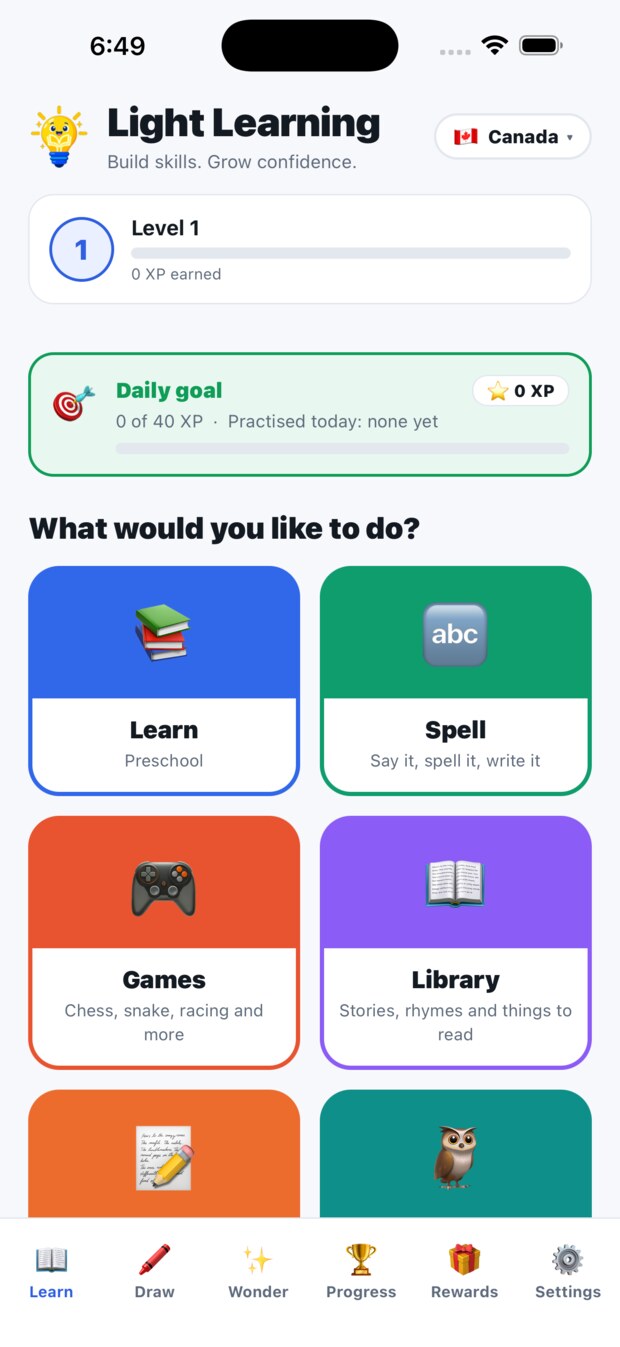
- Install the app and open it. There is no sign-up screen, because there is no account.
- Pick your country's curriculum. This changes the grade names, the subjects, the topics and the exams.
- Pick your child's grade.
- Type your child's name if you would like it on their certificate. It stays on the device. You can skip this.
That is the whole setup. Everything below can be changed later in Settings, and nothing already done is lost by changing it.
2. Choosing the curriculum and the grade
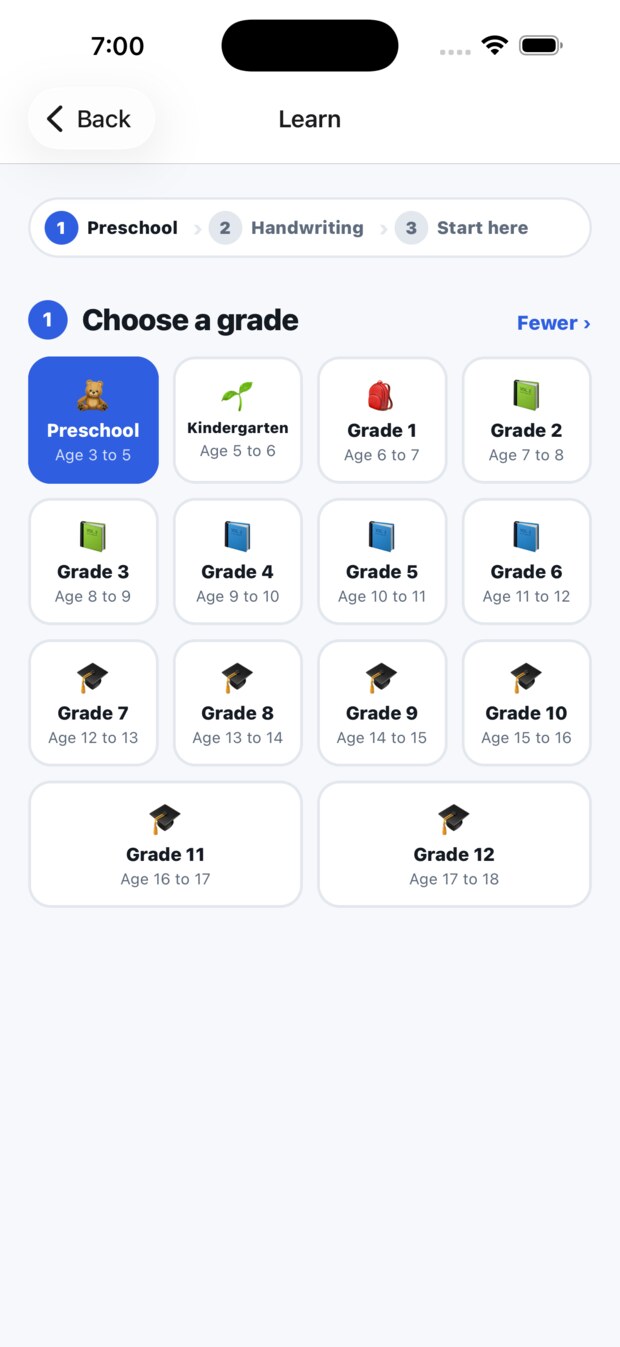
Tap Learn, then the grade. Each tile shows the age the grade usually covers, so you can check you have the right one.
If your child is ahead in one subject and behind in another, that is normal and the app is built for it. See every topic in every grade to compare.
3. The starting check
About a dozen questions, and it is optional. It works out roughly where your child is in each subject so the app can choose sensible topics rather than starting everybody at the beginning. Skip it and the app simply starts at the beginning of the chosen grade.
It is not a test and there is no score to see. A child cannot fail it.
4. Doing a topic
One question per screen. A wrong answer explains itself and offers the question again rather than moving on, because a child who has just got something wrong is the one person in the room who wants to know why.
A topic is mastered when it is passed at the end, not when it is opened. That distinction is what makes the certificate worth something.
If a child stops halfway, the app offers to carry on from where they were the next time they open it. It offers rather than forcing, so a child who wanted to start again can.
5. Say It, Spell It, Write It
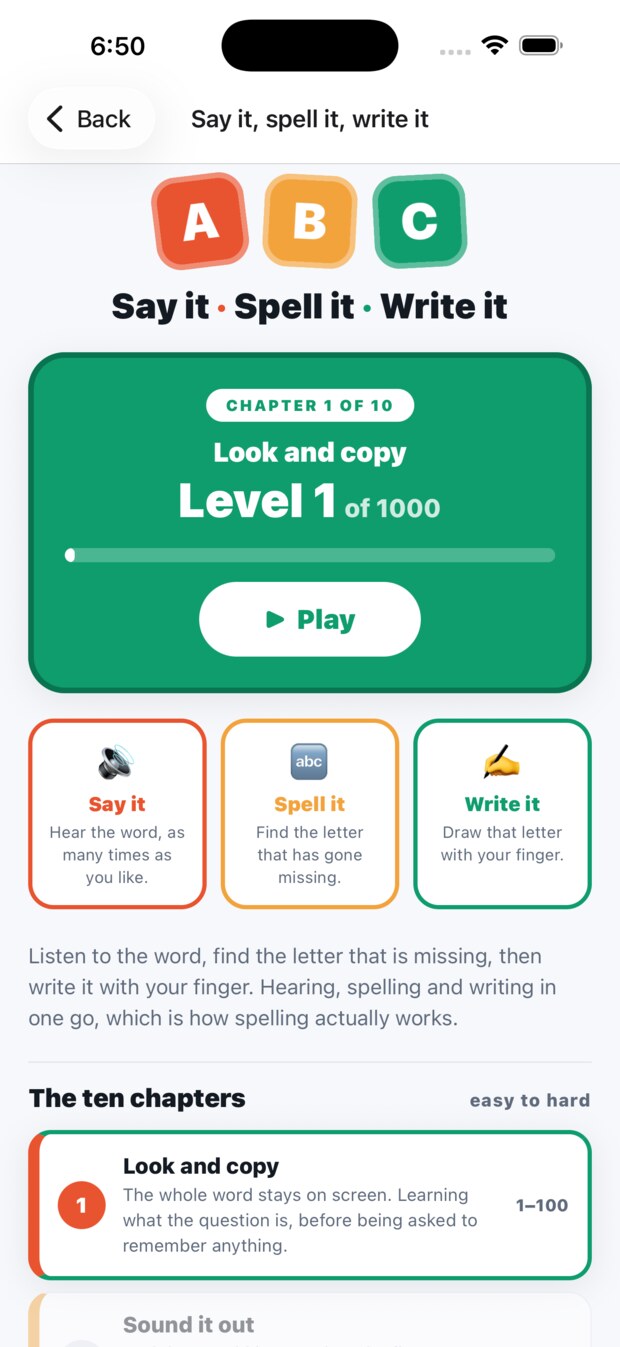
Ten chapters, a thousand levels, easiest first. A child hears the word, finds the letter that is missing, then writes it with a finger. Hearing, spelling and writing in one go, which is how spelling actually works.
6. The library and bedtime stories
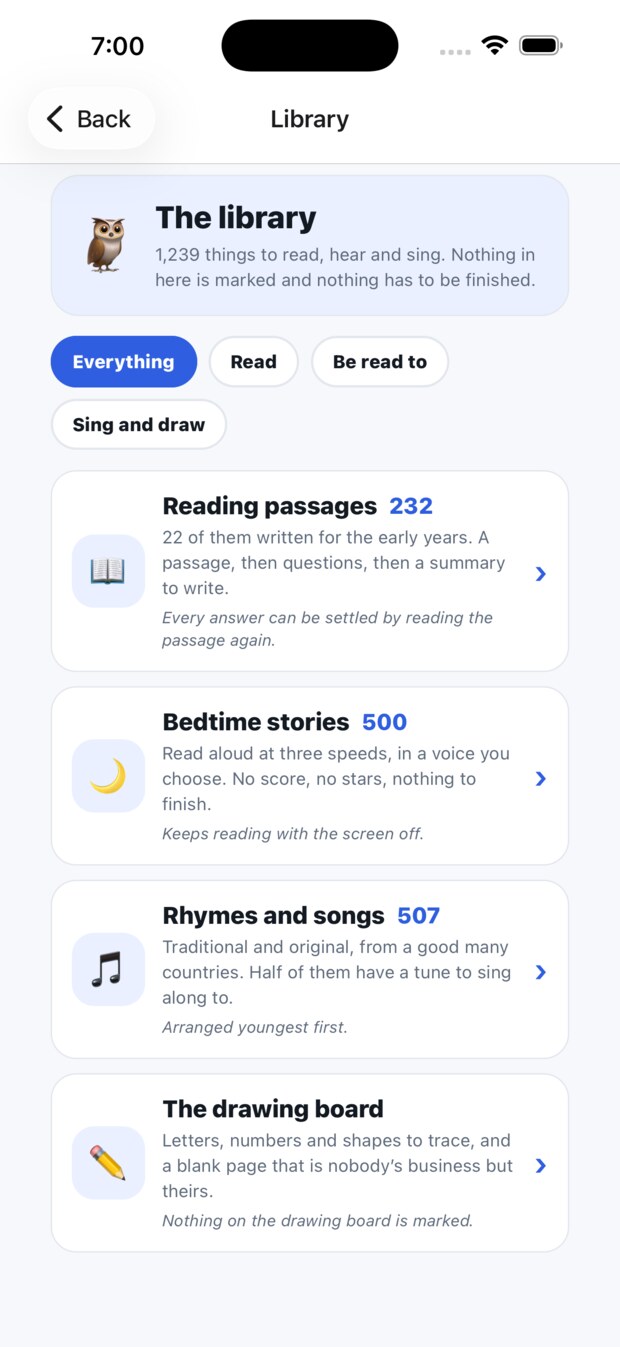
- Bedtime stories. Read aloud at three speeds, in a voice you choose. Nothing is marked and there is no next-story-unlocked. Keeps reading with the screen off.
- Rhymes and songs. Traditional and original, from many countries. Half have a tune.
- Reading passages. These are marked, with questions and a summary to write.
- The drawing board. Letters and shapes to trace, and a blank page that is nobody's business but theirs. Nothing on it is marked.
7. Exam practice
Tap Exam practice to see what your child's country actually sets: what the exam is called, how long it lasts and what it covers. Practice papers are sat in one go, under the clock, and marked with every answer explained.
The exams covered, country by country
8. Reading the parent report
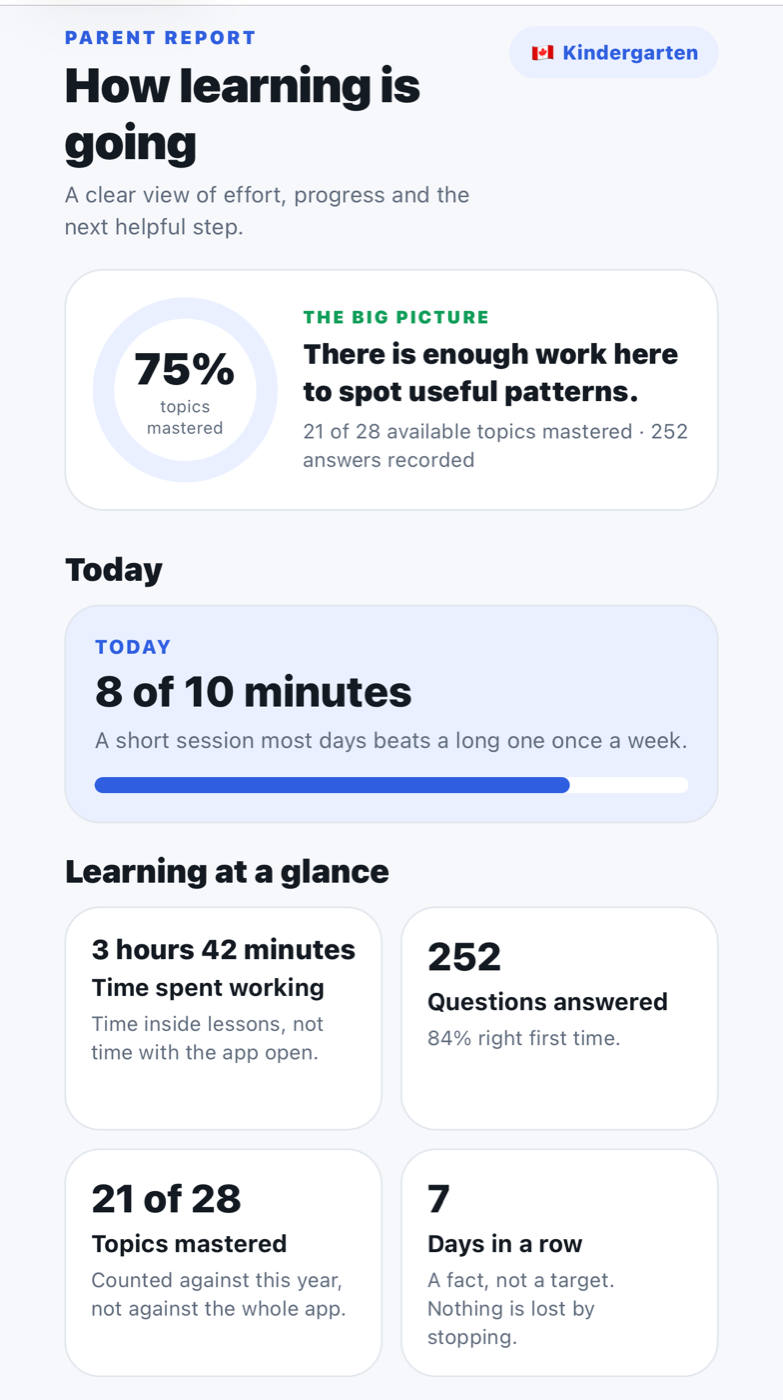
Find it under Progress. What to look at first:
- Time spent working is time inside lessons, not time with the app open.
- Right first time matters more than right eventually.
- Accuracy by subject is shown with the number of questions it came from, so you can tell 80% of five from 80% of fifty.
It will not tell you whether your child is gifted or behind. Those are judgements for a person who knows them.
9. Earning a certificate
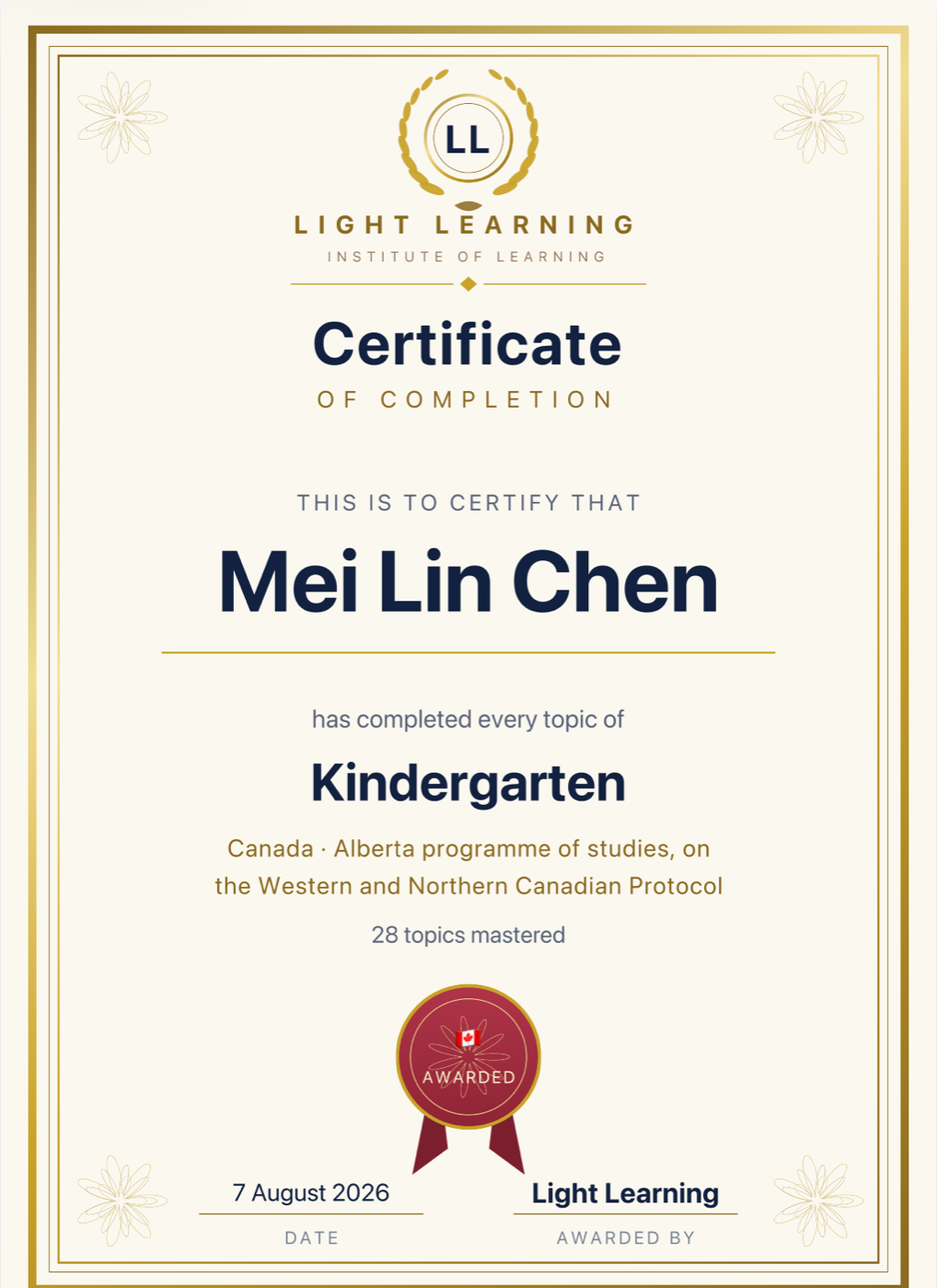
Every topic in the grade has to be mastered, not attempted. Before it is earned the certificate is still visible, marked NOT YET AWARDED, so a child can see what they are working toward.
Save it as a picture from the certificate screen, then print it at A4 or send it to whoever you like. Nothing is uploaded anywhere.
10. Making it easier to use
In Settings, under Comfort. All of it is free, permanently, on every plan:
- High contrast for a child who finds the colours hard to separate.
- Calm mode removes movement and celebration for a child who finds them too much.
- Plain language shortens the wording of questions.
- Read aloud speaks the question.
- Bigger text follows your phone's own text size.
11. Using it with no internet
Nothing to do. The whole app is on the device, so it works in flight mode, on a bus, in a village with no signal and on a phone with no data plan. There is no offline mode to turn on because there is no online mode to leave.
12. If something looks wrong
- The grade names look wrong. The wrong curriculum is selected. Settings, then Curriculum.
- A child cannot read the questions yet. Turn on Read aloud, and try Plain language.
- The work is too easy or too hard. Change the grade in Settings. Nothing already done is lost, and a child can work at a different level in each subject.
- Nothing shows in the report. It fills in after the first answered question. Bedtime stories and the drawing board are deliberately not counted.
Anything else, write to [email protected] and a person will answer.
Questions parents ask · Every topic your child will meet · Plans